
Top 10 Common Digital Formatting Mistakes (And How to Fix Them Instantly)
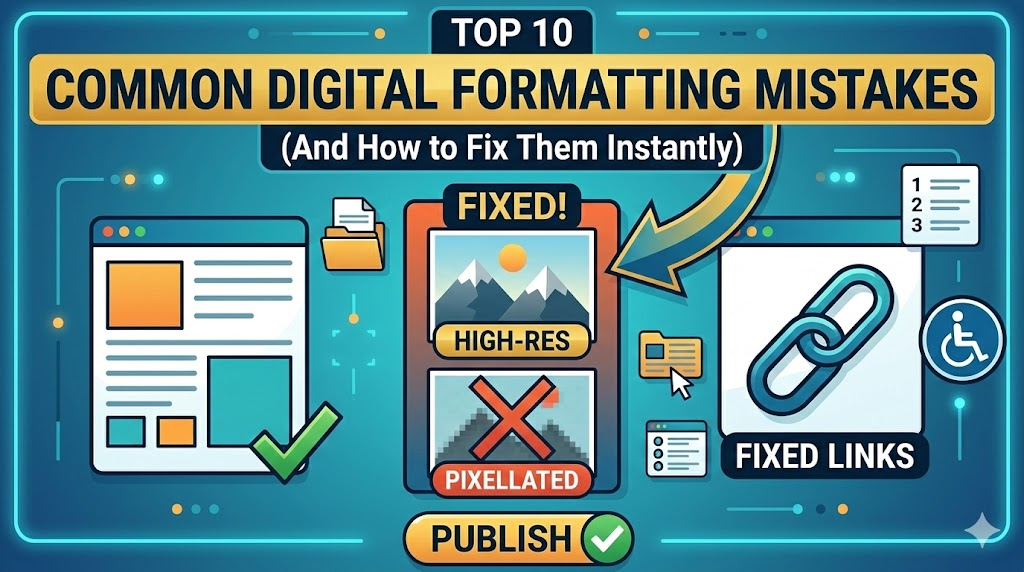
In the digital world, the difference between a professional-looking project and a messy one often comes down to a single detail: the file format. We’ve all been there—you upload a photo to your website and it looks blurry, or you send a document to a client and they can’t open it.
At anytool.site, we see these mistakes every day. The good news? Most of them take less than 30 seconds to fix if you have the right tools. Here are the top 10 formatting blunders and how to avoid them.
1. Using PNGs for Large Photographs
PNGs are great for logos, but using them for high-resolution photos is a “weight” nightmare.
- The Mistake: A 5MB PNG photo that slows down your website.
- The Fix: Convert it to JPEG or WebP. You’ll get the same visual quality at 1/10th the file size.
2. Sending Editable Word Docs Instead of PDFs
If you send a Word doc, the fonts might shift, and the layout could break on the recipient’s screen. Plus, they can see your “Track Changes” history.
- The Mistake: Unprofessional, inconsistent document layouts.
- The Fix: Always use a Word-to-PDF converter before hitting “Send.”
3. Ignoring Aspect Ratio When Resizing
Stretching an image to fit a square box makes people look like they are in a funhouse mirror.
- The Mistake: “Squished” or “pulled” graphics.
- The Fix: Use a tool that locks the aspect ratio, ensuring that when the width changes, the height adjusts proportionally.
4. Keeping Sensitive Metadata in Public Photos
Did you know your phone photos often contain the exact GPS coordinates of where they were taken?
- The Mistake: Accidentally sharing your home address via photo EXIF data.
- The Fix: Run your images through a metadata remover or a heavy compressor before posting them publicly.
5. Using JPEGs for Logos with Transparency
JPEGs do not support transparent backgrounds; they will always add a solid white or black box around your logo.
- The Mistake: A “white box” around your logo on a colored website background.
- The Fix: Convert your logo to PNG to preserve that crisp, transparent edge.
6. Not Optimizing Images for SEO
Google hates slow sites. If your images aren’t compressed, your search ranking will suffer.
- The Mistake: Thinking “it’s just one image” doesn’t matter.
- The Fix: Use a bulk image compressor to process all your web assets in one go.
7. Using the Wrong Color Profile (CMYK vs. RGB)
CMYK is for printing ink; RGB is for digital screens. If you use a CMYK image on a website, the colors will look “neon” or washed out.
- The Mistake: Distorted colors on your digital portfolio.
- The Fix: Ensure your web tools are outputting in RGB mode.
8. Uploading “Raw” Files to Social Media
Most social platforms will aggressively compress your high-quality files, often making them look worse than if you had compressed them yourself.
- The Mistake: Trusting Instagram’s automatic compression.
- The Fix: Pre-resize your images to the platform’s specific dimensions (e.g., 1080×1350 for Instagram).
9. Forgetting to Name Files for Search
A file named IMG_5921.jpg tells Google nothing.
- The Mistake: Losing out on “Image Search” traffic.
- The Fix: Rename your files to something descriptive, like
best-productivity-tools-2026.jpg, before uploading.
10. Thinking “High Resolution” Always Means “Better”
A 4K image on a smartphone screen is a waste of data.
- The Mistake: Making mobile users wait 10 seconds for an image they can’t even see in full detail.
- The Fix: Scale your images down to the maximum size they will actually be displayed.
Small Changes, Big Results
Avoiding these formatting traps makes your digital presence look more professional and keeps your website running at lightning speed. Whether you’re a student or a business owner, anytool.site is designed to help you fix these mistakes with just a few clicks.