
Understanding Image Compression: Lossy vs. Lossless Explained
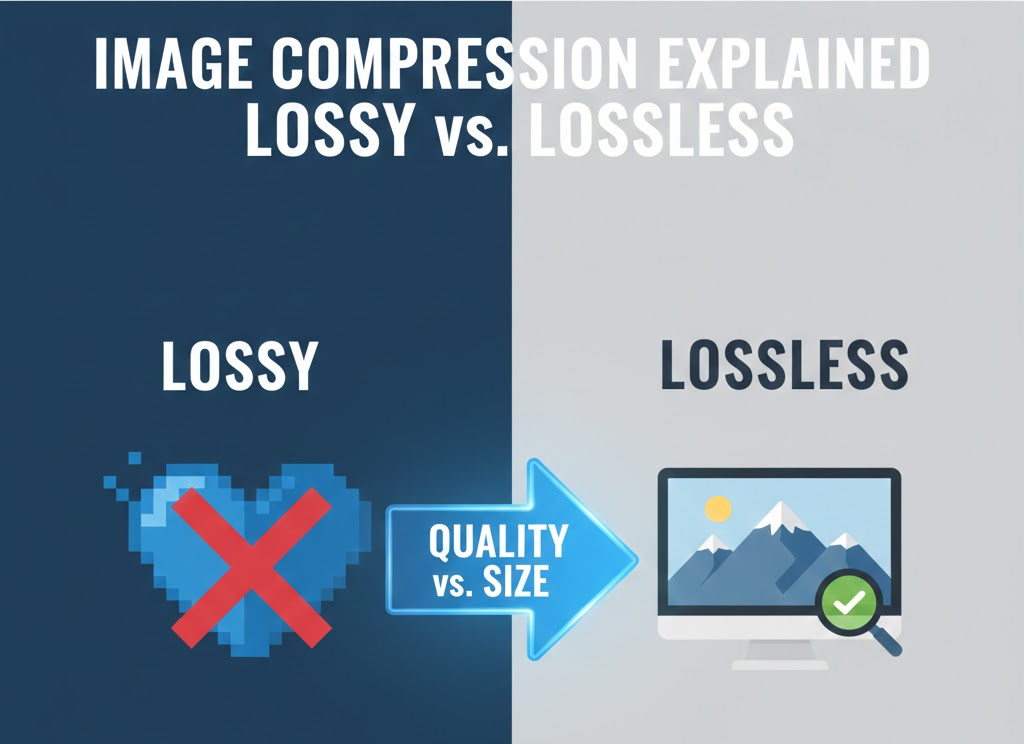
In the digital world, size matters—but so does quality. Whether you are a web developer trying to shave milliseconds off a page load or a photographer archiving your portfolio, the battle between Lossy and Lossless compression is one you fight every day.
At anytool.site, we provide the tools to handle both, but knowing which one to choose can be the difference between a crisp image and a pixelated mess.
What is Image Compression?
At its core, image compression is the process of reducing the file size of a graphic without making it unusable. Raw image files are often massive because they store data for every single pixel. Compression uses mathematical algorithms to “summarize” that data.
1. Lossy Compression: The Space Saver
Lossy compression works exactly how it sounds: it “loses” data. To make a file smaller, the algorithm identifies and discards information that the human eye likely won’t notice.
- How it works: It looks for areas of similar color and simplifies them. Instead of storing 100 slightly different shades of blue in a sky, it might store them as just three or four shades.
- The Pro: You can reduce a file size by 80% or 90% with very little visible difference.
- The Con: Each time you save a Lossy file, it degrades. This is known as “generation loss.”
- Best File Formats: JPEG, WebP (lossy mode).
When to use Lossy:
- Social media uploads (Instagram, Facebook).
- Blog posts and standard website images.
- Email attachments where speed is more important than perfect detail.
2. Lossless Compression: The Quality King
Lossless compression reduces file size without removing any data. When the file is uncompressed, it is bit-for-bit identical to the original.
- How it works: It uses clever shorthand. Instead of saying “Blue Pixel, Blue Pixel, Blue Pixel,” it says “3 Blue Pixels.” No data is thrown away; it’s just packed more efficiently.
- The Pro: Zero loss in quality. You can save the file a thousand times and it will remain perfect.
- The Con: File sizes remain relatively large compared to Lossy.
- Best File Formats: PNG, GIF, RAW, TIFF.
When to use Lossless:
- Images with text (text gets “blurry” in Lossy formats).
- Logos and graphics with transparent backgrounds.
- Professional photography archives.
The “Sweet Spot”: Finding the Balance
For most users of anytool.site, the goal is a balance. If you are running an e-commerce store, you need Lossy compression (like JPEG) to keep your site fast, but you need to set the quality high enough (usually around 70-80%) so your products still look enticing.
A Quick Comparison Table
| Feature | Lossy Compression | Lossless Compression |
| File Size | Very Small | Medium/Large |
| Image Quality | Degrades slightly | Identical to Original |
| Best For | Photos, Web Performance | Graphics, Logos, Text |
| Common Format | JPEG | PNG |
Why This Matters for SEO
Google’s 2026 Core Web Vitals prioritize Largest Contentful Paint (LCP). If your images are uncompressed, your site will rank lower. Using a tool to switch from a Lossless PNG to a Lossy WebP can often improve your page speed by over 50%.
There is no “better” version—only the “right” version for your task.
- Need it fast and small? Go Lossy.
- Need it perfect and crisp? Go Lossless.